Understanding your NIB Data
- Data is always provided as an Annual Premium, regardless of the premium frequency your client is paying.
- The premiums imported are exclusive of GST.
- When you import your NIB data, there are no leading zeros in the policy number, they get removed, so a policy number that is 00123456 will get imported as 123456 and you need to leave it like that.
- If you manually create an NIB policy in Adviser CRM make sure you also do not add any leading zeros, so when you import NIB data it will be able to find the exact policy number and update the existing, otherwise a duplicate policy will get created with the imported data, without the leading zeros.
- NIB only provide policies that are In Force, so any policies that have been lapsed, cancelled etc you will need to update manually. If you do not update manually, the policy stage will remain as In Force until you manually update the Life Policy and Policy Benefits.
What is included in your NIB data
- Contact details as follows;
- Name
- Date of Birth
- Address
- Phone
- Policy details as follows
- Product Name
- Policy Number
- Issue Date
- Annual Premium
- Benefit details as follows
- Benefit Name
- Benefit Annual Premium
- Benefit Issue Date
What is not included in your NIB data
- NIB do not provide a Policy Status so we make the assumption that all Policies in your download are In Force. This means you will need to manually change any Policies that are no longer In Force, you will need to change the Status manually.
- Contact smoking status
- Contact occupation
- Premium frequency
- Any loadings or exclusions
- No sums assured are provided
- No excess details (but the excess is usually added to the benefit name)
Downloading your NIB data
You will need access to the Adviser area of NIB and after you have logged into the NIB advisers area.
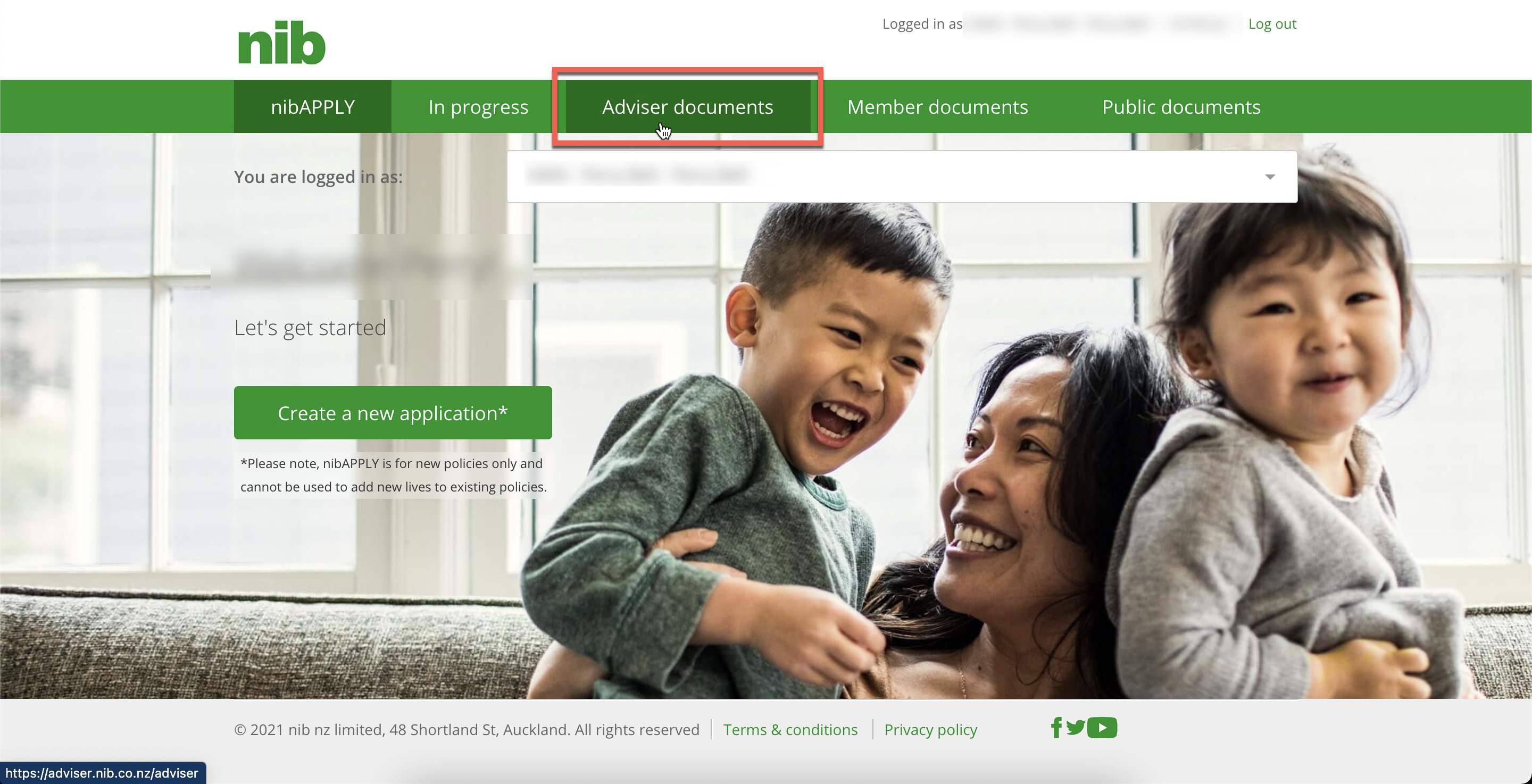
1. After you log into the Adviser Area of the NIB website click Adviser Documents
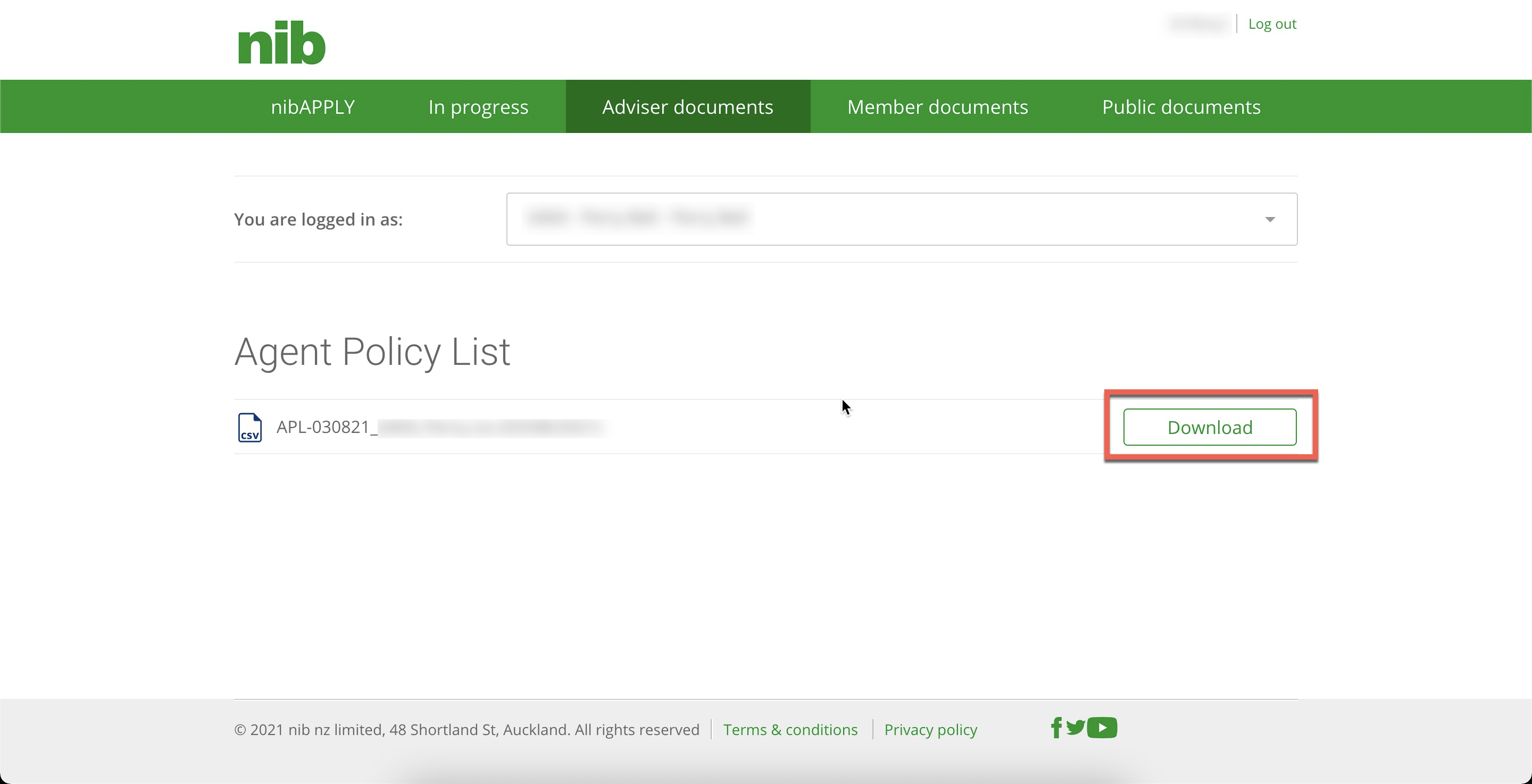
2. Then click Download and save the file to your computer.
Once you have your data file, you can import your data to Adviser CRM by following the instructions in this step by step video tutorial.
Was this article helpful?
That’s Great!
Thank you for your feedback
Sorry! We couldn't be helpful
Thank you for your feedback
Feedback sent
We appreciate your effort and will try to fix the article