Understanding your AIA data
IMPORT NOTES YOU NEED TO KNOW BEFORE YOU IMPORT YOUR DATA
AIA do not provide any client data download facilities for advisers, so you will need to request your data from your AIA BDM. When we use the term AIA or AIA Living we are also referring to Sovereign policies as well.
You will need to contact your BDM and ask them to send you a client download file of all your clients from their SLOGANS system and here are the instructions you should copy and paste when asking for the information.
- Enter Broker – Provide Agency code
- Policies/Proposal Status – All Policy/Proposal Status(s)
- Show Benefits? – Yes
- Show Fund Information – No
- Select a Product(s) ? – All
- Broker Hierarchy – Include Full Broker Hierarchy
- Show Quick Standard Status – Yes
- Show NPW Columns – Yes
- Lives on the Policy/Proposal – All Lives on the Policy/Proposal
- Date Selection – No Date restriction
What is included in your AIA data
- Contact details as follows
- Contact name
- Address
- Phone
- Date of birth
- Smoking status
- Gender
- Occupation
- Policy details as follows
- Product name
- Policy number
- Issue date
- Premium frequency
- Policy premium
- Policy status
- Benefit details as follows
- Person insured
- Sum assured
- Benefit name
- Benefit premium
- Issue date
- Benefit status
What is not included in your AIA data
- Any loadings or exclusions
A sample file is attached to the bottom of this article. We suggest you download and when you email your request to your AIA BDM attach a copy of this sample file.
What to do when your get your data file
If your BDM sends you an Excel file, you may have to make some edits described below. However, if your DBM sends you a CSV file, then you should not need to make any edits.
IT IS ADVISABLE TO CHECK YOUR FILE FOR ANY ADDITIONAL TABS AND LOGO AND EDIT AS DESCRIBED BELOW
There are some minor edits you need to make to the file when your BDM sends it to you and BEFORE you try and import this data.
1. Save the file from your email onto your computer
2. Open the file and delete the Document Map Tab and the Sheet 2 Tab which you will see at the bottom left of your screen.
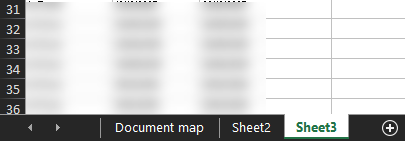 Image 1
3. Delete the top 2 rows and make sure that the first row is the row that contains the column description.
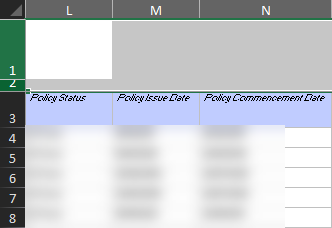 Image 2
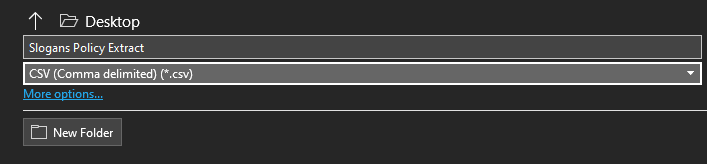 Image 3
Once you have your data files, you can import your data to Adviser CRM by following the instructions in this step by step video tutorial Insurer Data Import Guide
Was this article helpful?
That’s Great!
Thank you for your feedback
Sorry! We couldn't be helpful
Thank you for your feedback
Feedback sent
We appreciate your effort and will try to fix the article