Understanding your Fidelity Life Data
IT IS IMPORTANT TO UNDERSTAND THIS ARTICLE BEFORE YOU IMPORT FIDELITY LIFE DATA
Fidelity Life only provide data downloads for In Force policies only. This means if a policy changes it's status from In Force to another status such as Cancelled, then the policy data will no longer be included in the data downloads. This also means you will need to update the Policy and Life Benefits status manually in Adviser CRM.
What is included in your Fidelity Life data
- Contact details as follows
- Name
- Date of birth
- Address
- Smoking status
- Gender
- Policy details as follows
Product name
- Policy number
- Issue date
- Premium
- Premium frequency
- Policy status (In Force Only)
- Benefit details as follows
- Benefit name
- Benefit premium
- Sum Assured
- Person insured
- Issue date
- Benefit status (In Force Only)
What is not included in your Fidelity Life data
- Policy or benefit status
- No contact phone numbers
- Loadings and Special Terms
Downloading your Fidelity Life data
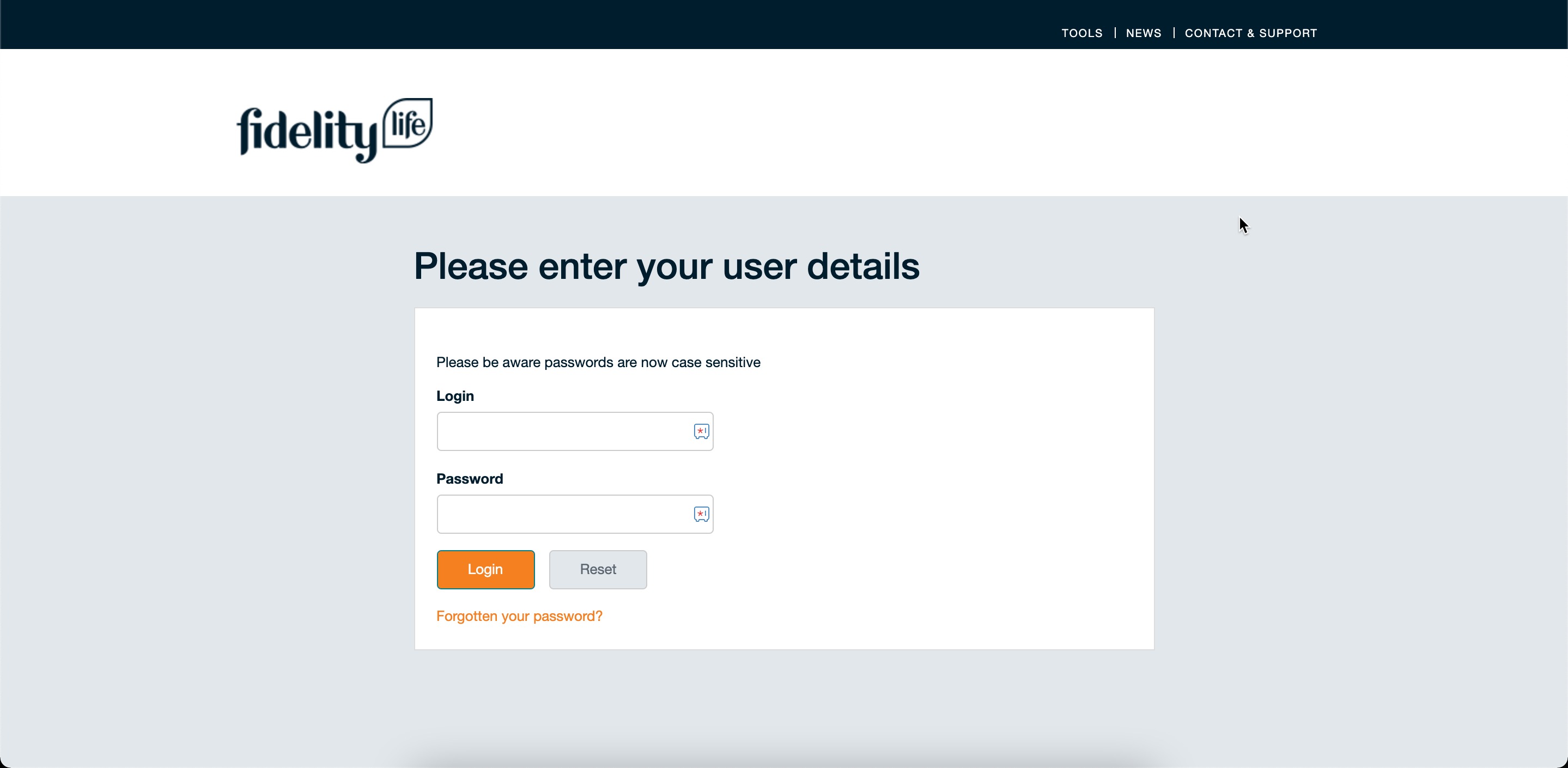
You will need to log into the Fidelity Life Adviser Centre for Advisers at https://fidelitylife.co.nz/AdviserCentre/login if you cannot remember your username and password, your username is usually your agency code and your password is what ever you set it to be, but you can use the Forgot Password option on the login screen.
Click the Policy Report option to download your data. This file will be sufficient to import into Adviser CRM. A list of fields that come with the download file are inside the file, but we have listed then at the bottom of the article so you know what type of data will get imported.
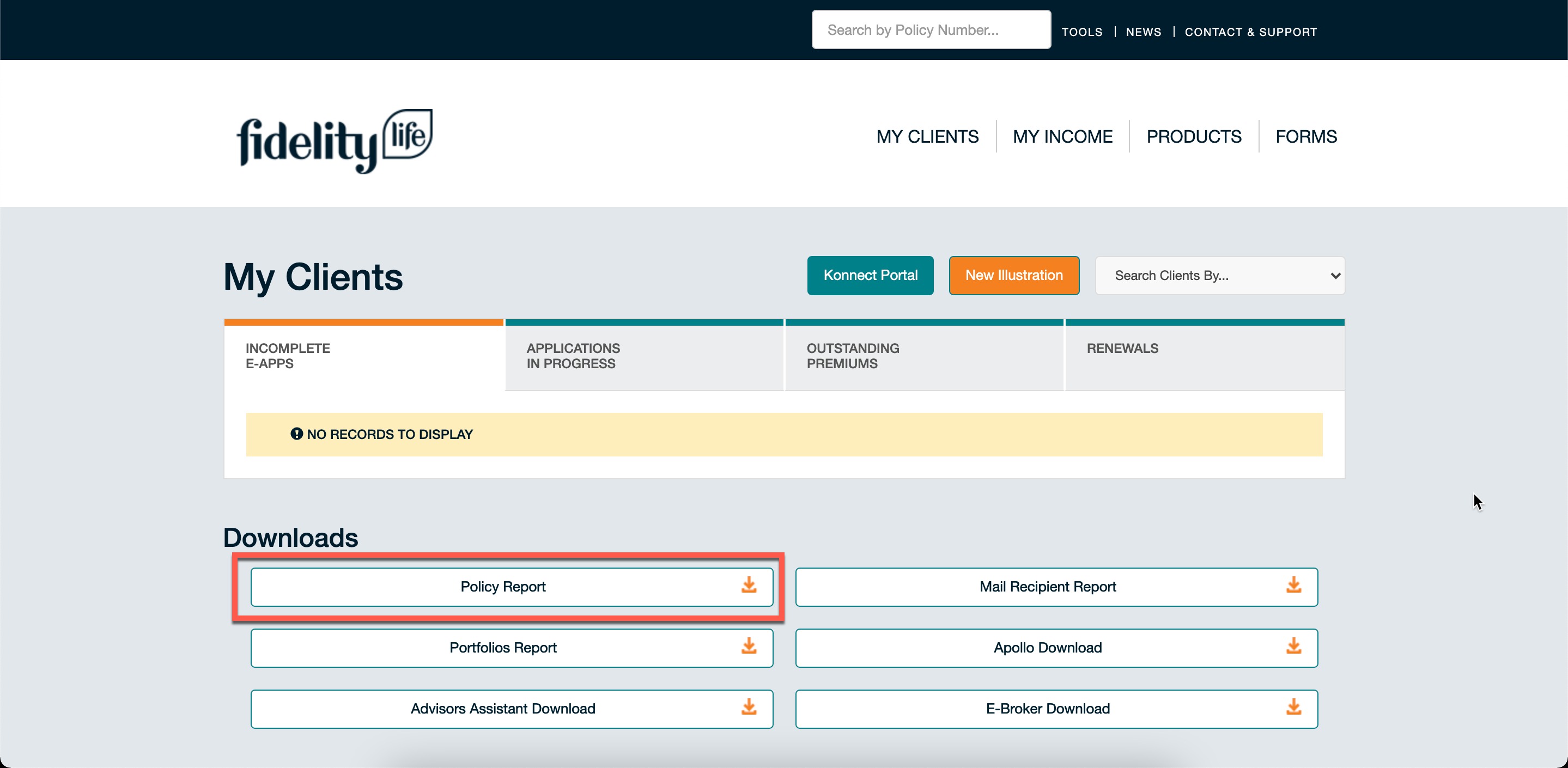 Fidelity Life Adviser Centre
Updating policies in Adviser CRM that are no longer In Force
If you have Fidelity Life policies that show as In Force in Adviser CRM but they are no longer In Force, you can bulk update all of them at once by following these instructions.
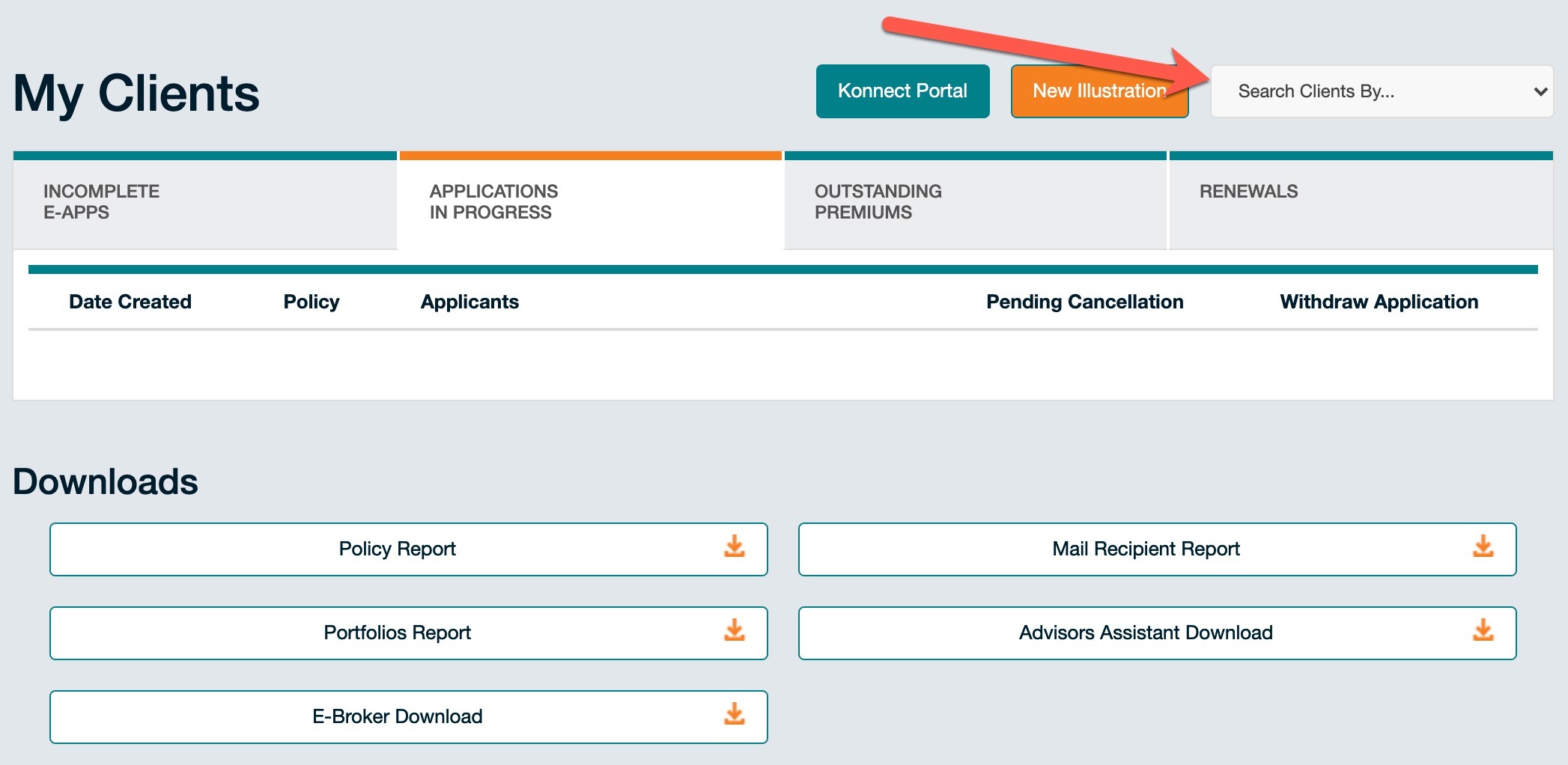
While still in the adviser area of Fidelity Life, click "Search Clients By..." (see screenshot below)
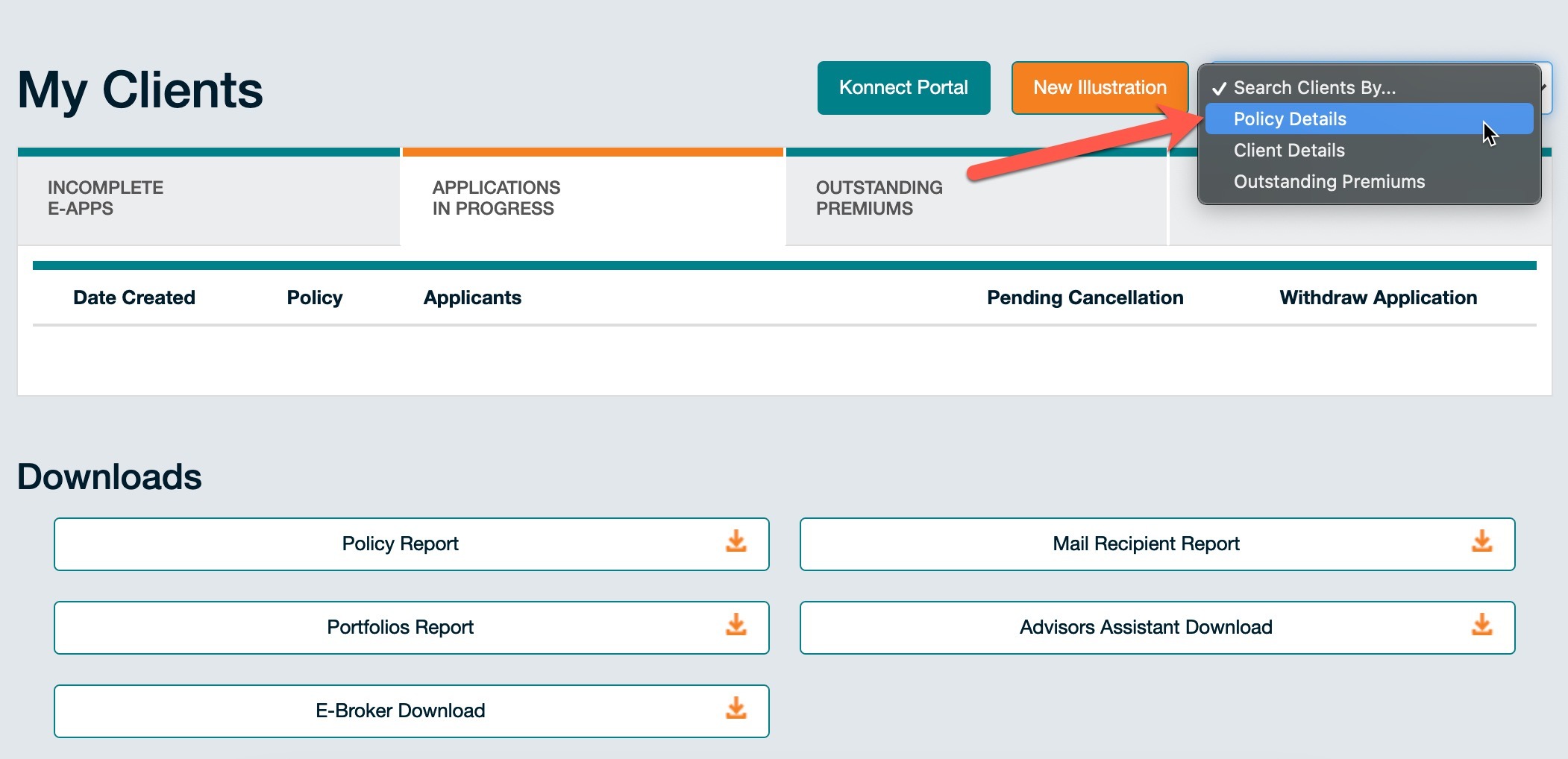
Then click the drop down list and select Policy Details
You will get a search screen and all you need to do is click Submit
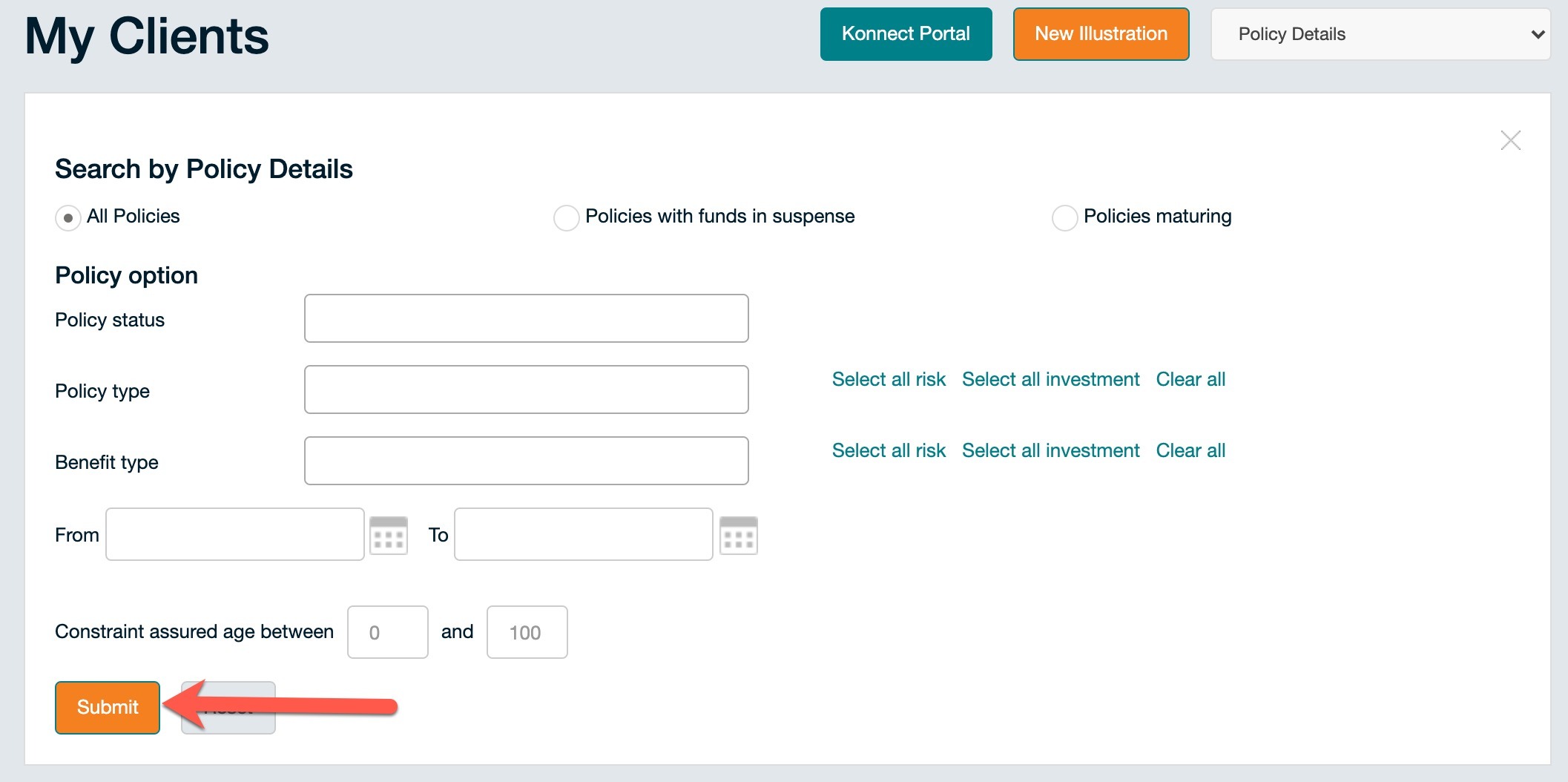
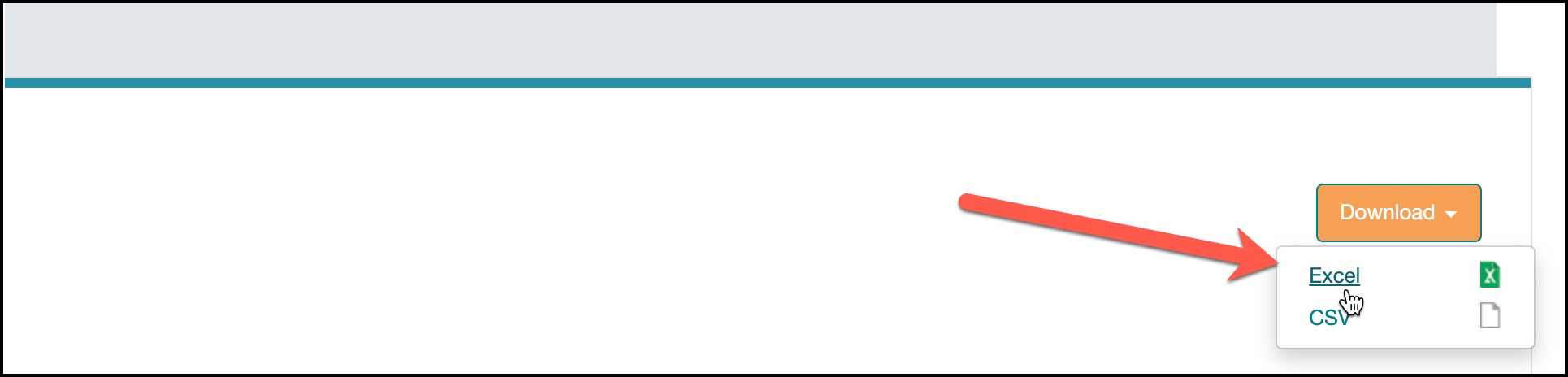
The next screen you will see your search results, all you need to do is click Download and Select Excel as the option and save to your computer. This is the file you will need to use to update all your Fidelity Life policies to their current statuses.
Was this article helpful?
That’s Great!
Thank you for your feedback
Sorry! We couldn't be helpful
Thank you for your feedback
Feedback sent
We appreciate your effort and will try to fix the article